react-native-camera-kit - v16.1.2

A high performance, easy to use, rock solid
camera library for React Native apps.


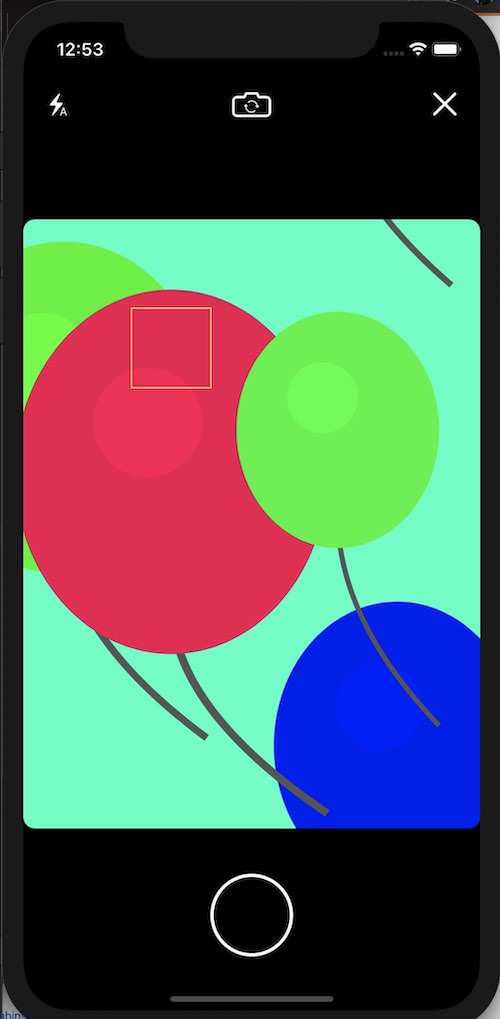
|
|
Installation (RN > 0.60)
yarn add react-native-camera-kit
cd ios && pod install && cd ..
Android: Review your Kotlin configuration to ensure it's compatible with this library.
Permissions
You must use a separate library for prompting the user for permissions before rendering the <Camera .../> component.
We recommend zoontek's library, react-native-permissions:
https://github.com/zoontek/react-native-permissions#ios-flow
If you fail to prompt for permission, the camera will appear blank / black.
Why no permissions API?
Conceptually, permissions are simple: Granted / Denied.
However, in reality it's not that simple due to privacy enhancements on iOS and Android.
Here's an example diagram from react-native-permissions's README, which illustrates the complexity of the user-experience, which we don't want to duplicate in a camera library:
┏━━━━━━━━━━━━━━━━━━━━━━━━━━━━━━━┓
┃ check(PERMISSIONS.IOS.CAMERA) ┃
┗━━━━━━━━━━━━━━━━━━━━━━━━━━━━━━━┛
│
Is the feature available
on this device ?
│ ╔════╗
├───────────║ NO ║──────────────┐
│ ╚════╝ │
╔═════╗ ▼
║ YES ║ ┌─────────────────────┐
╚═════╝ │ RESULTS.UNAVAILABLE │
│ └─────────────────────┘
Is the permission
requestable ?
│ ╔════╗
├───────────║ NO ║──────────────┐
│ ╚════╝ │
╔═════╗ ▼
║ YES ║ ┌───────────────────┐
╚═════╝ │ RESULTS.BLOCKED / │
│ │ RESULTS.LIMITED / │
│ │ RESULTS.GRANTED │
▼ └───────────────────┘
┌────────────────┐
│ RESULTS.DENIED │
└────────────────┘
│
▼
┏━━━━━━━━━━━━━━━━━━━━━━━━━━━━━━━━━┓
┃ request(PERMISSIONS.IOS.CAMERA) ┃
┗━━━━━━━━━━━━━━━━━━━━━━━━━━━━━━━━━┛
│
Does the user accept
the request ?
│ ╔════╗
├───────────║ NO ║──────────────┐
│ ╚════╝ │
╔═════╗ ▼
║ YES ║ ┌─────────────────┐
╚═════╝ │ RESULTS.BLOCKED │
│ └─────────────────┘
▼
┌─────────────────┐
│ RESULTS.GRANTED │
└─────────────────┘
In earlier versions of react-native-camera-kit, permissions were provided with an API, but for the above reasons, these APIs will be removed.
Android
Add the following uses-permission to your AndroidManifest.xml (usually found at: android/src/main/)
<uses-permission android:name="android.permission.CAMERA" />
<uses-permission android:name="android.permission.WRITE_EXTERNAL_STORAGE"/>
iOS
Add the following usage descriptions to your Info.plist (usually found at: ios/PROJECT_NAME/)
<key>NSCameraUsageDescription</key>
<string>For taking photos</string>
<key>NSPhotoLibraryUsageDescription</key>
<string>For saving photos</string>
Running the example project
yarn bootstrapyarn example iosoryarn example android
Components
Camera
Barebones camera component if you need advanced/customized interface
import { Camera, CameraType } from 'react-native-camera-kit';
<Camera
ref={(ref) => (this.camera = ref)}
cameraType={CameraType.Back} // front/back(default)
flashMode="auto"
/>
Barcode / QR Code Scanning
Additionally, the Camera can be used for barcode scanning
<Camera
...
// Barcode props
scanBarcode={true}
onReadCode={(event) => Alert.alert('QR code found')} // optional
showFrame={true} // (default false) optional, show frame with transparent layer (qr code or barcode will be read on this area ONLY), start animation for scanner, that stops when a code has been found. Frame always at center of the screen
laserColor='red' // (default red) optional, color of laser in scanner frame
frameColor='white' // (default white) optional, color of border of scanner frame
/>
Camera Props (Optional)
| Props | Type | Description |
|---|---|---|
ref |
Ref | Reference on the camera view |
style |
StyleProp<ViewStyle> | Style to apply on the camera view |
flashMode |
'on'/'off'/'auto' |
Camera flash mode. Default: auto |
focusMode |
'on'/'off' |
Camera focus mode. Default: on |
zoomMode |
'on'/'off' |
Enable the pinch to zoom gesture. Default: on. If on, you must pass zoom as undefined or avoid setting zoomMode to allow pinch to zoom |
zoom |
number |
Control the zoom. Default: 1.0 |
maxZoom |
number |
Maximum zoom allowed (but not beyond what camera allows). Default: undefined (camera default max) |
onZoom |
Function | Callback when user makes a pinch gesture, regardless of what the zoom prop was set to. Returned event contains zoom. Ex: onZoom={(e) => console.log(e.nativeEvent.zoom)}. |
torchMode |
'on'/'off' |
Toggle flash light when camera is active. Default: off |
cameraType |
CameraType.Back/CameraType.Front | Choose what camera to use. Default: CameraType.Back |
onOrientationChange |
Function | Callback when physical device orientation changes. Returned event contains orientation. Ex: onOrientationChange={(event) => console.log(event.nativeEvent.orientation)}. Use import { Orientation } from 'react-native-camera-kit'; if (event.nativeEvent.orientation === Orientation.PORTRAIT) { ... } to understand the new value |
| Android only | ||
onError |
Function | Android only. Callback when camera fails to initialize. Ex: onError={(e) => console.log(e.nativeEvent.errorMessage)}. |
shutterPhotoSound |
boolean |
Android only. Enable or disable the shutter sound when capturing a photo. Default: true |
| iOS only | ||
ratioOverlay |
'int:int' |
Show a guiding overlay in the camera preview for the selected ratio. Does not crop image as of v9.0. Example: '16:9' |
ratioOverlayColor |
Color | Any color with alpha. Default: '#ffffff77' |
resetFocusTimeout |
number |
Dismiss tap to focus after this many milliseconds. Default 0 (disabled). Example: 5000 is 5 seconds. |
resetFocusWhenMotionDetected |
Boolean | Dismiss tap to focus when focus area content changes. Native iOS feature, see documentation: https://developer.apple.com/documentation/avfoundation/avcapturedevice/1624644-subjectareachangemonitoringenabl?language=objc). Default true. |
resizeMode |
'cover' / 'contain' |
Determines the scaling and cropping behavior of content within the view. cover (resizeAspectFill on iOS) scales the content to fill the view completely, potentially cropping content if its aspect ratio differs from the view. contain (resizeAspect on iOS) scales the content to fit within the view's bounds without cropping, ensuring all content is visible but may introduce letterboxing. Default behavior depends on the specific use case. |
scanThrottleDelay |
number |
Duration between scan detection in milliseconds. Default 2000 (2s) |
maxPhotoQualityPrioritization |
'balanced' / 'quality' / 'speed' |
iOS 13 and newer. 'speed' provides a 60-80% median capture time reduction vs 'quality' setting. Tested on iPhone 6S Max (66% faster) and iPhone 15 Pro Max (76% faster!). Default balanced |
onCaptureButtonPressIn |
Function | Callback when iPhone capture button is pressed in or Android volume or camera button is pressed in. Ex: onCaptureButtonPressIn={() => console.log("volume button pressed in")} |
onCaptureButtonPressOut |
Function | Callback when iPhone capture button is released or Android volume or camera button is released. Ex: onCaptureButtonPressOut={() => console.log("volume button released")} |
| Barcode only | ||
scanBarcode |
boolean |
Enable barcode scanner. Default: false |
showFrame |
boolean |
Show frame in barcode scanner. Default: false |
barcodeFrameSize |
object |
Frame size of barcode scanner. Default: { width: 300, height: 150 } |
laserColor |
Color | Color of barcode scanner laser visualization. Default: red |
frameColor |
Color | Color of barcode scanner frame visualization. Default: yellow |
onReadCode |
Function | Callback when scanner successfully reads barcode. Returned event contains codeStringValue. Default: null. Ex: onReadCode={(event) => console.log(event.nativeEvent.codeStringValue)} |
Imperative API
Note: Must be called on a valid camera ref
capture()
Capture image as JPEG.
A temporary file is created. You must move this file to a permanent location (e.g. the app's 'Documents' folder) if you need it beyond the current session of the app as it may be deleted when the user leaves the app. You can move files by using a file system library such as react-native-fs or expo-filesystem.
(On Android we currently have an unsupported outputPath prop but it's subject to change at any time).
Note that the reason you're getting a URL despite it being a file is because Android 10+ encourages URIs. To keep things consistent regardless of settings or platform we always send back a URI.
const { uri } = await this.camera.capture();
// uri = 'file:///data/user/0/com.myorg.myapp/cache/ckcap123123123123.jpg'
If you want to store it permanently, here's an example using react-native-fs:
import RNFS from 'react-native-fs';
// [...]
let { uri } = await this.camera.capture();
if (uri.startsWith('file://')) {
// Platform dependent, iOS & Android uses '/'
const pathSplitter = '/';
// file:///foo/bar.jpg => /foo/bar.jpg
const filePath = uri.replace('file://', '');
// /foo/bar.jpg => [foo, bar.jpg]
const pathSegments = filePath.split(pathSplitter);
// [foo, bar.jpg] => bar.jpg
const fileName = pathSegments[pathSegments.length - 1];
await RNFS.moveFile(filePath, `${RNFS.DocumentDirectoryPath}/${fileName}`);
uri = `file://${destFilePath}`;
}
Using with Expo
If you are using Expo Managed Workflow, you can use this library with a third-party plugin expo-react-native-camera-kit.
Contributing
- Pull Requests are welcome, if you open a pull request we will do our best to get to it in a timely manner
- Pull Request Reviews are even more welcome! we need help testing, reviewing, and updating open PRs
- If you are interested in contributing more actively, please contact us.
License
The MIT License.
See LICENSE